By default, Microsoft Lync 2010 enable users to set their presence to one of the following five states:

But Administrators can provide users with another option for setting their presence: Appear Offline. When a user selects this option, he or she appears to be offline. In fact, all of the user's contacts see a presence icon indicating the user is offline. For the users to have the option of "Appear Offline" you must create a new registry key and registry value on the computer running Microsoft Lync 2010. For this option that I'm showing is per user or machine setting only, not a Global Setting. Caution: Incorrectly editing the registry may severely damage your system. Before making changes to the registry, you should back up any valued data on the computer. Enable User to Appear Offline:
- Log on to a computer that is running Office Communicator.
- Click Start, and then click Run.
- In the Run dialog box, type regedit, and then press ENTER.
- In Registry Editor, expand HKEY_LOCAL_MACHINE, expand Software, expand Policies, expand Microsoft, click Communicator.
- Right-click the Communicator registry key, point to New, and then click DWORD (32-bit) Value.
- After the new value is created, type EnableAppearOffline to rename the value.
- Double-click the new EnableAppearOffline registry value.
- In the Edit DWORD (32-bit) Value dialog box, type 1 in the Value data box, and then click OK.

Registry Setting Sample
- After making above change, exit from Lync 2010 (from system tray) and relaunch it.
- After signing back to Lync 2010 you should able to see "Appear Offline" on the option of the Microsoft Lync 2010.
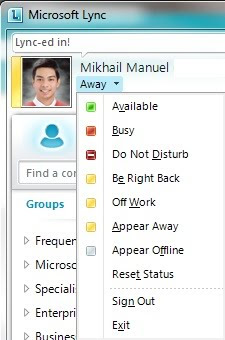


You know have the "Appear Offline" option on Lync 2010.
For question you can email: mikhail@mimanu.com


